Announcements
Account Integration Guide
01. From the Window tab, go to Settings (the gear icon at the top right) -> Account -> 'Send Merge Code'.
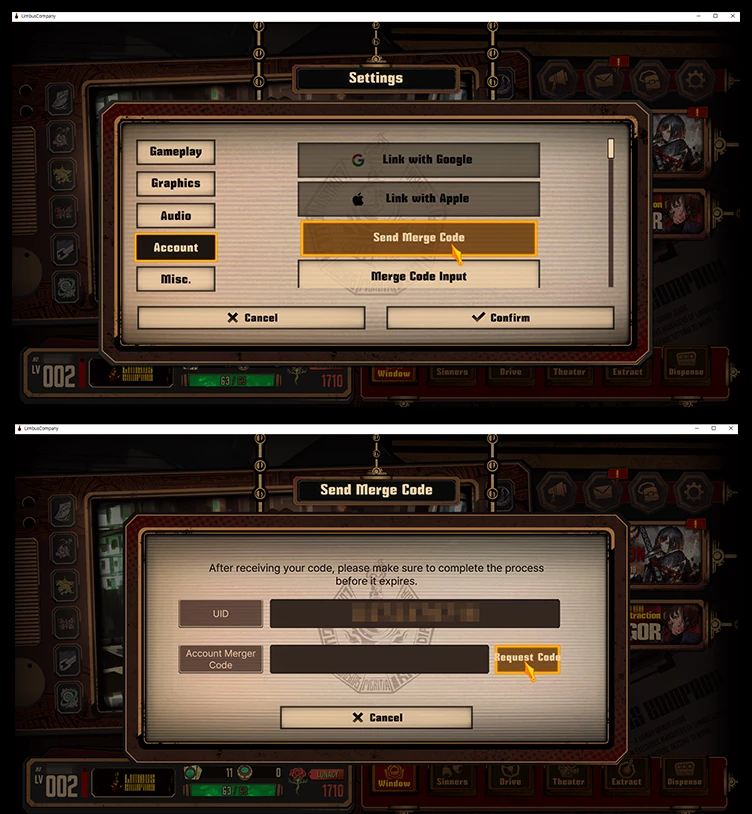
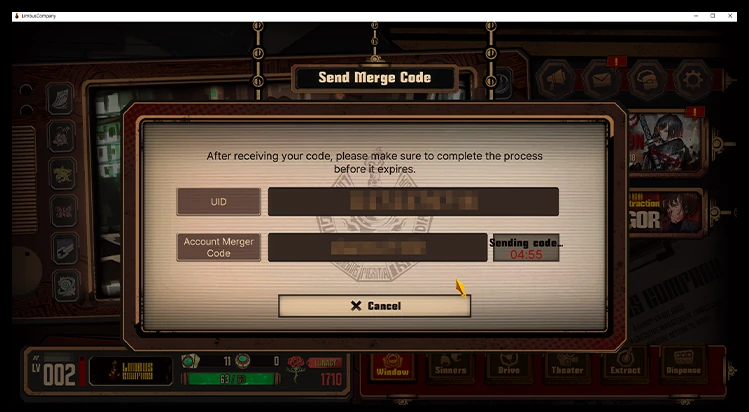
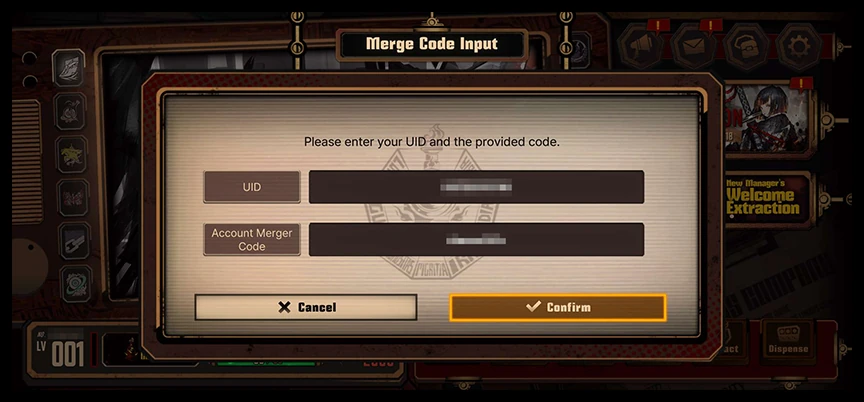
02. Check the UID and merge code displayed on the screen.
03. Run the game on your other device.
※ Do note that two accounts on the same platform (e.g. Steam & Steam) cannot be integrated with each other.
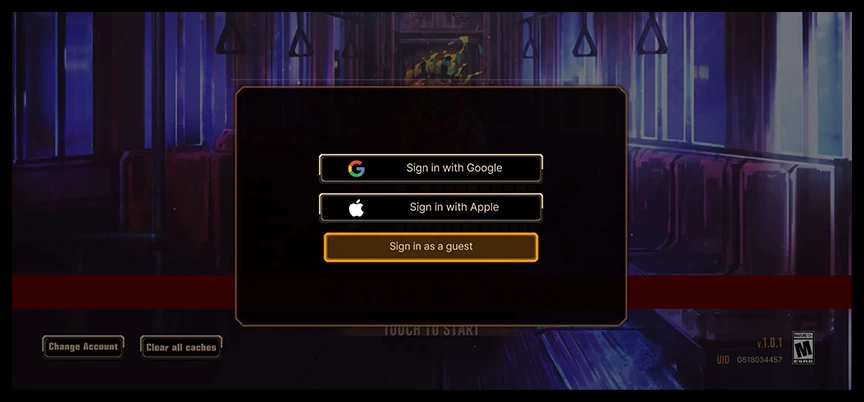
04. From that device's Window tab, go to Settings -> Account -> 'Merge Code Input'.
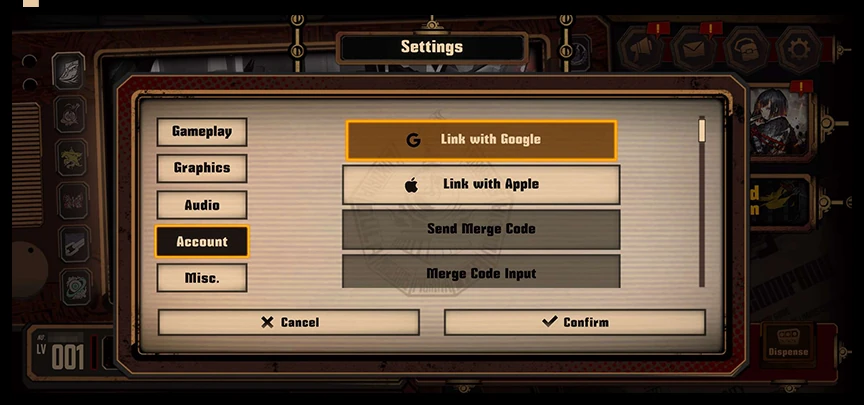
※ If you're using a guest account, please link it with a Google or Apple account on the Account tab in Settings first. After linking that account, close then reopen the settings, and the merge code-related functions will be available.
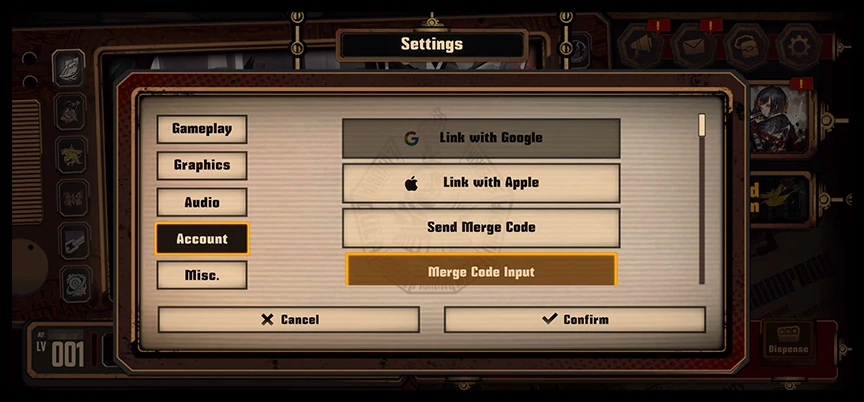
05. Input the UID and merge code from Step 2.
06. Choose the game account to merge the data to.
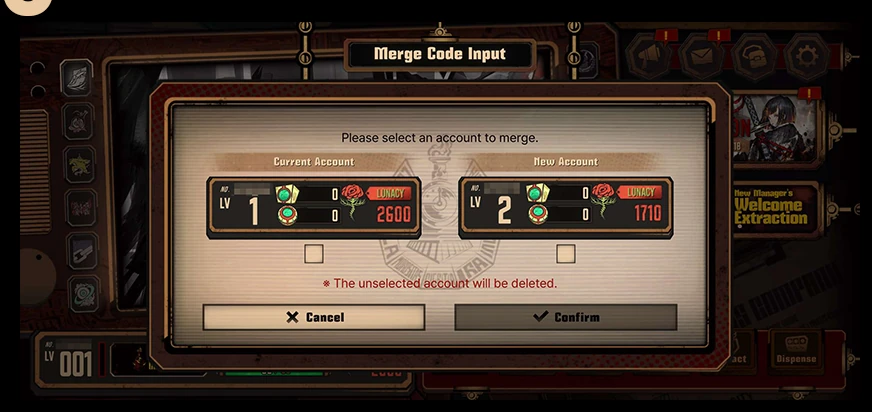
※ The unselected account will be deleted, so please proceed with caution.
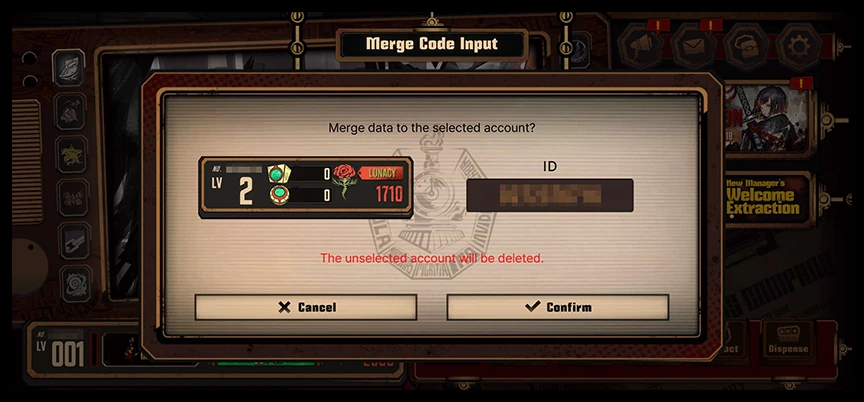
07. After successful integration, a notice will be displayed like the example below.
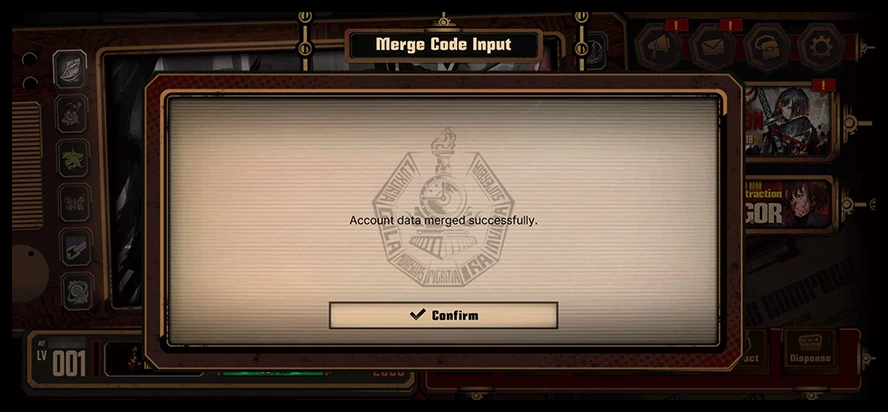
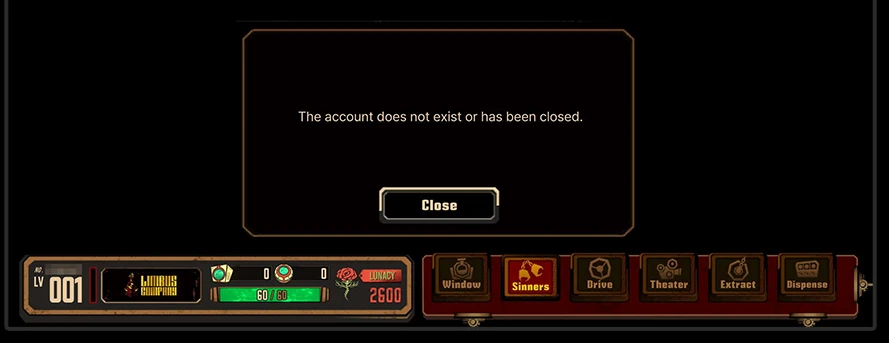
※ Attempting to make inputs in the game with a deleted account will cause the game to shut down.